How to measure a room with an iPhone

There are two ways to measure a room with an iPhone. The Measure app, which is already on the phone, gives you one distance at a time: you measure the length, the width and the height and work out the area yourself. A LiDAR room scan gives you every wall, the floor area, the ceiling height, doors and windows in one walk around the room. This guide shows both, step by step, and which one fits the job you are measuring for.
Which method to use
If you need two or three numbers, use Measure. If you need the whole room, or more than one room, scan it.
| Measure app | LiDAR room scan | |
|---|---|---|
| Works on | Any recent iPhone; extras on models with LiDAR | iPhone or iPad with LiDAR only |
| What you get | One distance per measurement | Every wall length, room area, ceiling height, doors and windows |
| Room area | You multiply length by width | Calculated for you |
| Result | A list of numbers and screenshots | A floor plan and a 3D model you can export or share |
| Good for | Will this sofa fit, one wall for shelves | Flooring, painting, listings, renovation planning |
Both use the iPhone's camera and, where the phone has one, its LiDAR sensor. If you are not sure what that sensor is or whether your phone has it, start with what LiDAR on iPhone is.
Method 1: Measure a room with the Measure app
Measure is in the Utilities folder. Apple's guide to measuring dimensions with iPhone recommends well-defined objects 0.5 to 3 metres from the phone, and says the measurements are approximate. A room is bigger than that, so the trick is to measure it in pieces you can see clearly.
- Open Measure and move the phone slowly so it sees the floor and the walls. Give it a few seconds before the first measurement.
- Measure the length. Put the dot in the centre of the screen on the corner where the floor meets one wall and tap the Add button (+). Walk slowly along the wall, keeping the line in view, and tap Add again at the opposite corner.
- Measure a long wall in two parts. If the wall is longer than about 3 metres, end the first measurement at a clear mark halfway, such as a socket or a door frame, start the next one from there, and add the two figures.
- Measure the width the same way, along the adjoining wall.
- Measure the ceiling height in a corner or along a door frame. On iPhones with LiDAR, hold the dot on a vertical edge until a guide line appears, then measure along it.
- Measure the doors and windows if you need them, for example the doorway a new sofa has to pass through.
- Save the numbers. On supported models, the measurements list keeps every measurement from the session with screenshots. Tap Copy and paste them into Notes. On any iPhone you can tap the shutter button to save a photo of each measurement.
The edge guides, Ruler view and measurement list are available on the iPhone models with a LiDAR Scanner. Basic two-point measurements work on other iPhones too. Apple describes saving and copying the list in viewing and saving measurements on iPhone. For the other things Measure does, such as a person's height, see how to use LiDAR on iPhone.
Work out the area yourself
Measure gives you lengths, not the area of a room. For a rectangular room, multiply length by width: a room 4.2 metres long and 3.5 metres wide is 4.2 × 3.5 = 14.7 square metres. For an L-shaped room, split the floor into two rectangles, measure each, and add the two areas. For flooring, buy a margin on top for cuts; the shop or the fitter will tell you how much for the material you chose.
For walls, multiply each wall's length by the ceiling height and subtract doors and windows. It works, but on a room with six walls, two windows and a door it is a dozen measurements and a page of arithmetic, which is where a scan saves time.
Method 2: Scan the room with LiDAR
A room scanning app uses the LiDAR sensor to measure every surface it sees while you walk around. FloorLens is one such app, and it is free to scan, measure and export. It needs an iPhone 12 Pro or a later Pro or Pro Max model, or an iPad Pro from 2020 or later, running iOS 26 or later.
- Start a scan. No account is needed.
- Walk slowly along the walls, holding the phone up and staying at least half a metre from the surface you are scanning. Slow down at corners, doors and windows.
- Follow the coverage feedback. The app flags areas that need another pass while you are still in the room.
- Stop the scan. The floor plan and the 3D model are ready straight away, with no upload and no waiting step.
- Read the measurements. Wall lengths, room areas, ceiling heights, room length × width, and the dimensions of objects such as furniture are measured automatically. Doors and windows are detected, with the direction a door swings.
- Measure anything else by hand. The manual measurement tool measures between any two points in the scanned 3D scene, so you can take the width of an alcove or the height of a windowsill after you have left the room.
- Correct and keep it. Move or resize a wall the scan got wrong, then export a PDF with the measurements, an image of the plan, or a 3D model, or share the scan as a link.
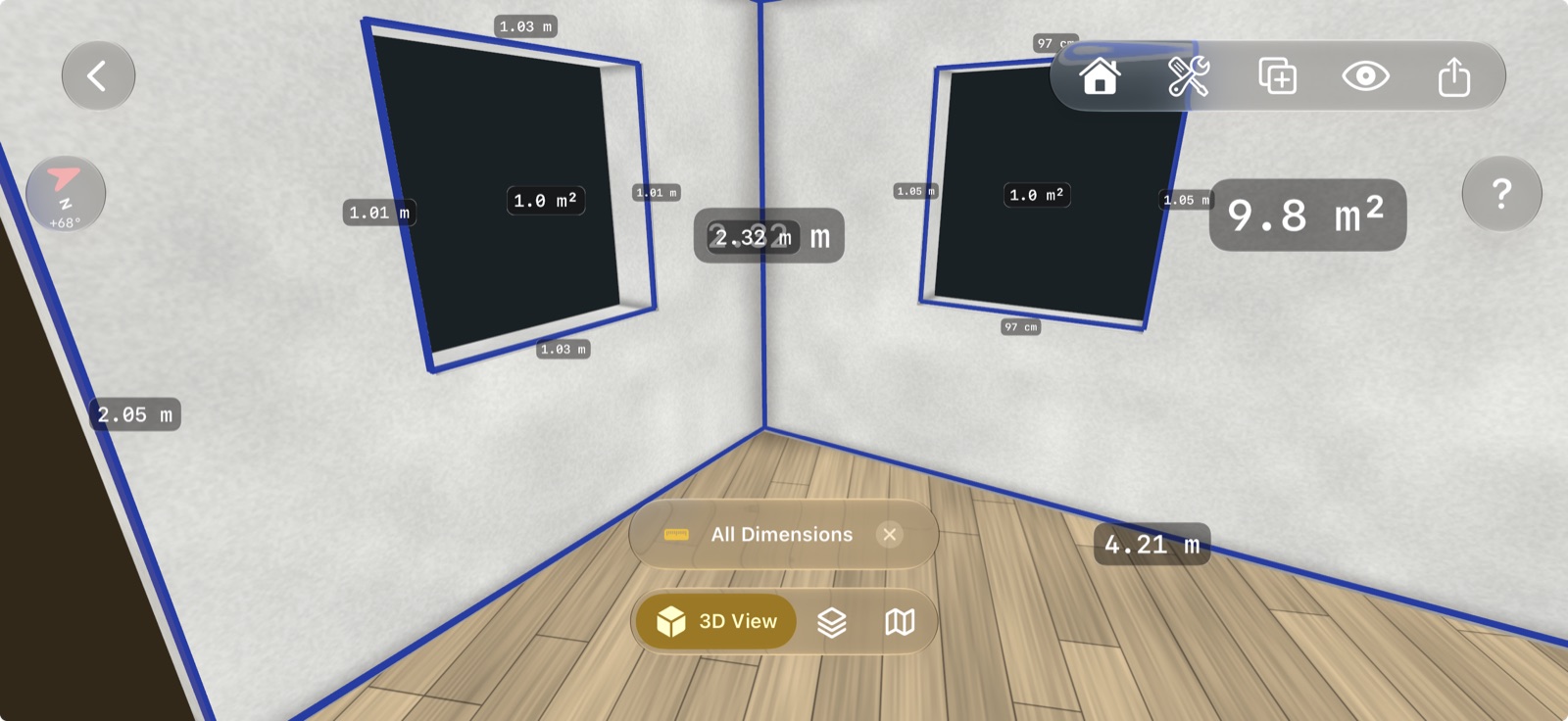
The full walkthrough, with what the plan looks like and how to edit it, is in how to make a floor plan from an iPhone LiDAR scan. For more on scanning technique, see the LiDAR scanning tips.
The sensor has a limit worth knowing in a large room: Apple gives its range as up to 5 metres, and the depth readings apps receive stop there. Walk towards the far wall rather than scanning it from across the room, and check the ceiling height in a tall room.
Room areas and floor area standards
FloorLens calculates room areas for you and can apply a country's floor area standard, such as Gross Living Area in the United States, Gross Internal Area in the United Kingdom, Wohnfläche in Germany or SIA 416 in Switzerland. Those standards decide what counts: walls, stairs, low ceilings. That is the difference between "the floor of this room" and "the area you would quote in a listing".
Areas from a phone scan, or from Measure app figures multiplied together, are estimates, not a survey, and not legally binding. Do not use them for contracts, valuations or official filings.
How accurate is it?
Apple calls Measure app results approximate. A LiDAR room scan is typically within a few centimetres across a room, which is enough for flooring and paint quantities, furniture planning, a listing or a first renovation quote. It is not enough for anything that has to fit exactly, such as a fitted wardrobe or a worktop, where you should use the phone to plan and a tape measure to confirm the critical dimension before you order.
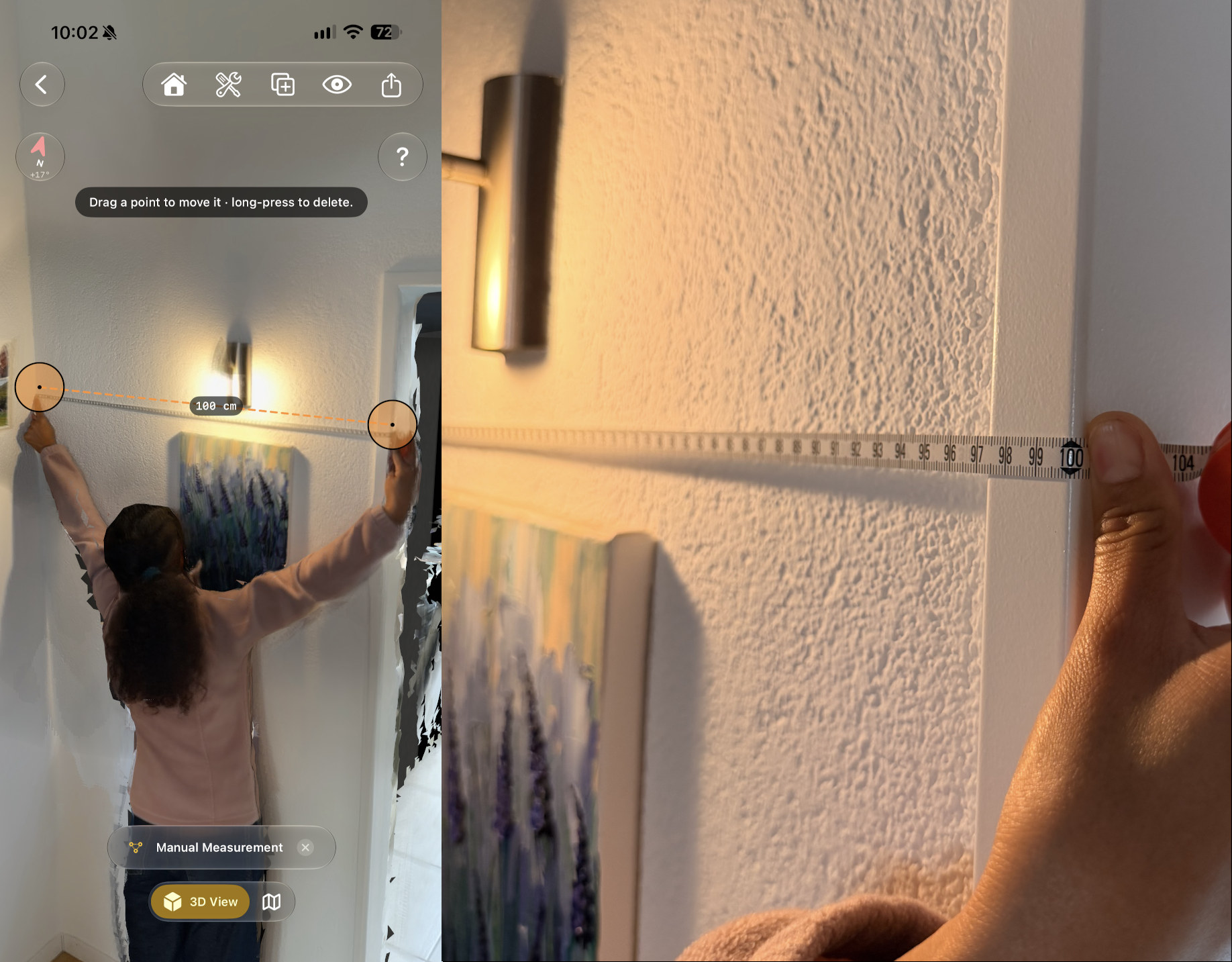
That test was a well-lit room, at close range, on a clear wall. It shows that the measurements should be fairly accurate when conditions are good, not that every scan matches a tape to the centimetre. Mirrors, glass, dark surfaces and walls beyond the sensor's range all make it worse. The details, and how to check your own scan with a tape measure, are in how accurate iPhone LiDAR is.
What to measure for each job
- New flooring: the floor area of each room, plus doorways where the floor continues. A scan gives you the areas directly.
- Painting or wallpaper: wall lengths, ceiling height, and the doors and windows to leave out.
- Furniture: the wall or alcove it goes against, and every doorway on the way in. See using a floor plan for furniture layout.
- A listing or rental advert: a floor plan with room areas, which is what real estate agents and landlords use a scan for.
- Renovation or design work: the as-built state of the space in a format your software opens. See exporting a room scan as GLB, USDZ or OBJ.
For one shelf or one sofa, the Measure app is quicker than anything you could install. For a whole room, one walk with a scan gives you every number at once, and leaves you with a plan you can open again when you realise you forgot to measure the radiator. You can see what a FloorLens scan measures before you install it.
Frequently asked questions
Can an iPhone measure a room?
Yes. The built-in Measure app measures one distance at a time on any iPhone, and on an iPhone or iPad with LiDAR a room scanning app measures every wall, the floor area and the ceiling height in one scan.
Can the iPhone Measure app calculate the area of a room?
Not for a whole room. It measures lengths and the dimensions of rectangles it detects, so you measure the length and width and multiply them yourself. A room scanning app calculates room areas for you.
How accurate is measuring a room with an iPhone?
Apple describes Measure app results as approximate and recommends objects 0.5 to 3 metres away. A LiDAR room scan is typically within a few centimetres across a room. Neither is a survey, so check critical dimensions with a tape measure.
Do I need LiDAR to measure a room with my iPhone?
No for single distances: the Measure app works without it. Yes for scanning a whole room into a floor plan with apps such as FloorLens, which need an iPhone 12 Pro or later Pro model, or an iPad Pro from 2020 or later.
Measure the whole room in one walk
FloorLens is free to scan, measure and export, no account required. iPhone & iPad with LiDAR, iOS 26+.
Download on the App Store