How to share a 3D home tour link clients can open without an app

The friction in most 3D tours isn't the capture, it's the viewing. Too often the person you send a tour to has to install an app, make an account, or fight a clunky player before they see a single room. Here's how to share a scan as a plain web link that opens in one tap.
Why "no app, no login" matters
Every extra step between a client and the tour is a place to lose them. A prospective renter or buyer glancing at a listing on their phone won't download an app or sign up just to look around. They will tap a link. Sending an interactive 3D walkthrough as a normal web page means it just works, first time, on whatever device they happen to be holding. It also looks far more impressive than a flat PDF or a wall of photos.
Share a scan from FloorLens, step by step
- Open or finish a scan. Scan the space, or open a scan you made earlier. (New to scanning? See how to make a floor plan from an iPhone LiDAR scan.)
- Share it to the web. Choose to share the scan to the web; FloorLens uploads it to the cloud and prepares a browser-based 3D viewer.
- Grab the link and QR code. You get a shareable link and a matching QR code. Both are also printed on the exported PDF, so anyone holding the printed plan can jump straight to the 3D tour.
- Send it. Paste the link into a text, email or WhatsApp, or show and print the QR code. Your client taps it and the interactive tour opens in their browser.
What your client sees
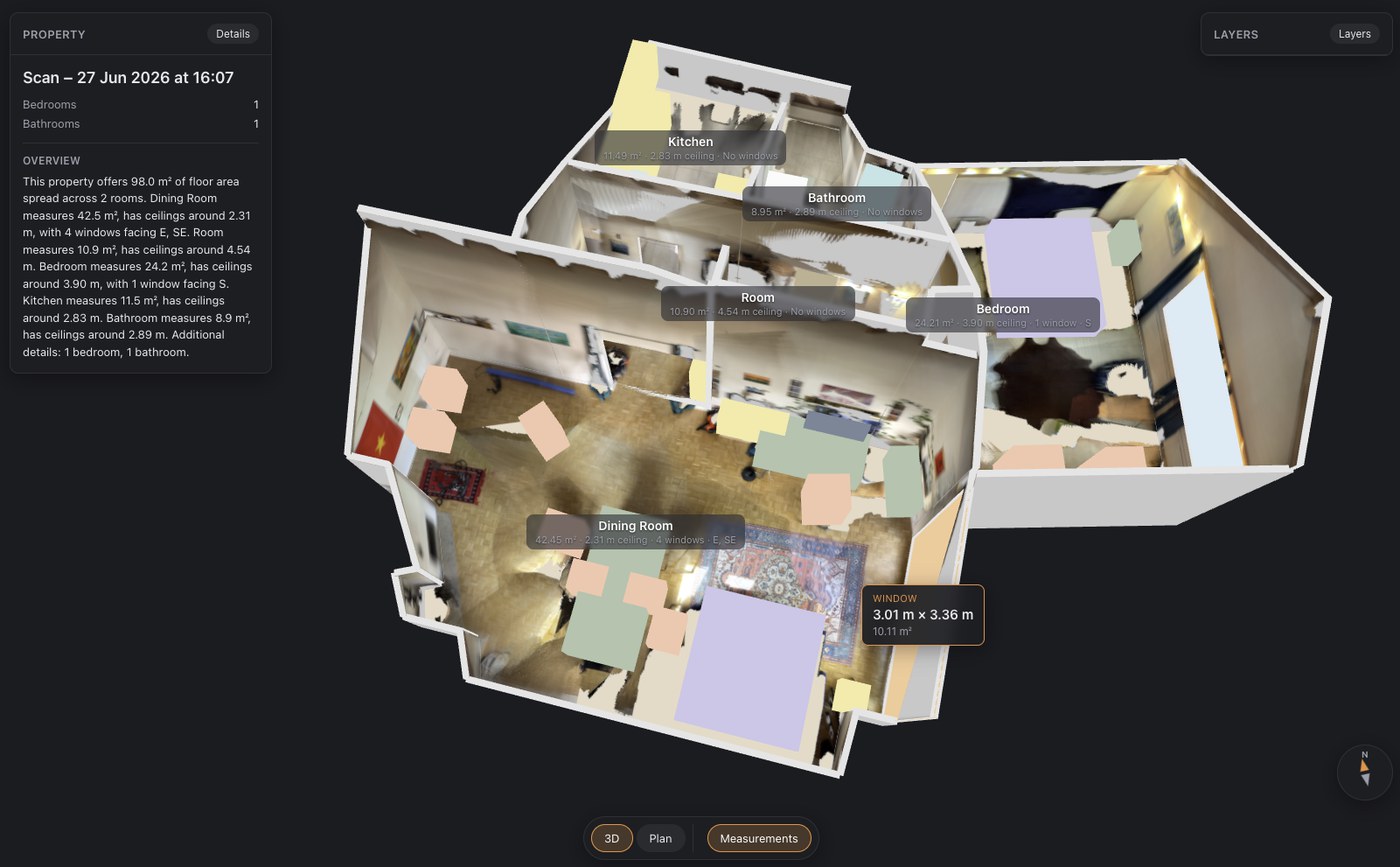
The link opens a fast, browser-based 3D viewer of the exact space you scanned. They can explore it three ways:
- Dollhouse — orbit the whole property in 3D, like a physical model they can spin.
- Floor plan — a clean top-down plan with room labels and measurements.
- First-person & photos — walk through the space, with the photos you captured pinned exactly where they were taken.
It runs on a phone or a laptop, and the same URL works for everyone you send it to. Nobody has to install anything or sign up. If the person at the other end wants the model itself rather than a tour, you can also export the scan as GLB, USDZ or OBJ.
Where to put the link and QR code
- In the listing description or portal, as a "View the 3D tour" link next to the floor plan made for the listing.
- In a message or email to an individual client.
- On a printed flyer, brochure or window card, where the QR code opens the tour straight from paper.
- On a business card, so a scan of your work is always one tap away.
Links, privacy & expiry
Shared links are unlisted, and they expire automatically so nothing lingers online forever. On the free plan you can keep one scan shared on the web at a time, and it auto-deletes after 14 days. That's plenty for a round of viewings or an open house. Paid plans keep more scans live for longer (90-day links on Premium, 180 on Professional), which suits an agent juggling several active listings. Exactly what is and isn't uploaded when you share is covered in Swiss privacy by design.
Frequently asked questions
Do clients need to install anything or create an account?
No. The tour opens in any modern browser (Safari, Chrome, Edge and others) on a phone, tablet or laptop. There's no app to install and no login.
Does the shared tour work on Android and desktop?
Yes. The shared tour is a standard web page, so anyone on any device can open it. Only the scanning app itself is iPhone and iPad.
How long does the shared link stay live?
On the free plan you can keep one scan shared on the web and it auto-deletes after 14 days. Paid plans keep more scans live for longer: links last 90 days on Premium and 180 on Professional.
Turn your next scan into a shareable 3D tour
FloorLens is free to scan, measure and export, and one web share is included. iPhone & iPad with LiDAR, iOS 26+.
Download on the App Store